📋 ClipStash
Organize your clipboard like never before
The ultimate clipboard manager for iOS that intelligently saves, organizes, and manages your copied content with powerful features and beautiful design.
🚀 Getting Started
What is ClipStash?
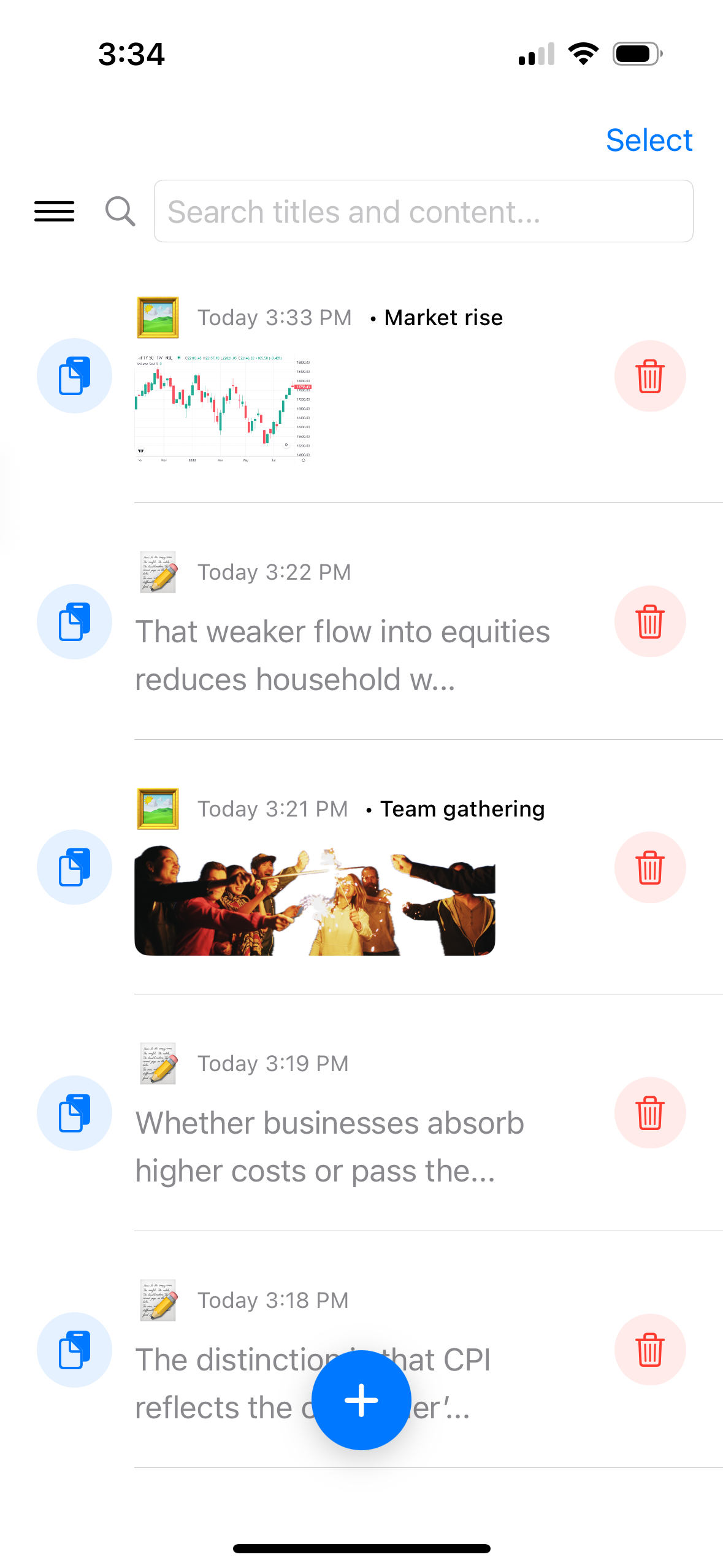
ClipStash is a powerful clipboard manager for iPhone and iPad that helps you save and organize everything you copy. Whether it's text or images, ClipStash keeps track of it all with intelligent duplicate detection and powerful organization features.
Key Benefits
🔍 Smart Duplicate Detection
Advanced hash-based system prevents duplicate clips from cluttering your collection.
🌙 Beautiful Dark Mode
Automatically adapts to your system theme with carefully designed adaptive colors.
📱 Universal iOS Support
Optimized for both iPhone and iPad with responsive layouts.
⚡ Instant Search
Find any clip quickly by searching titles or content.
📝 Working with Clips
Adding Clips
To add content to ClipStash:
- Copy any text or image to your device's clipboard
- Open ClipStash and tap the blue + button
- Your clipboard content will be saved as a new clip
Smart Duplicate Detection: ClipStash automatically prevents duplicate content from being added to your collection.
Text Clips
Text clips display rich information about your copied text:
- Word Count: See exactly how many words are in your text
- Character Count: Track character length for social media posts
- Preview: A preview of your text is shown in the list view
- Full Content: Tap to view complete text in detail view
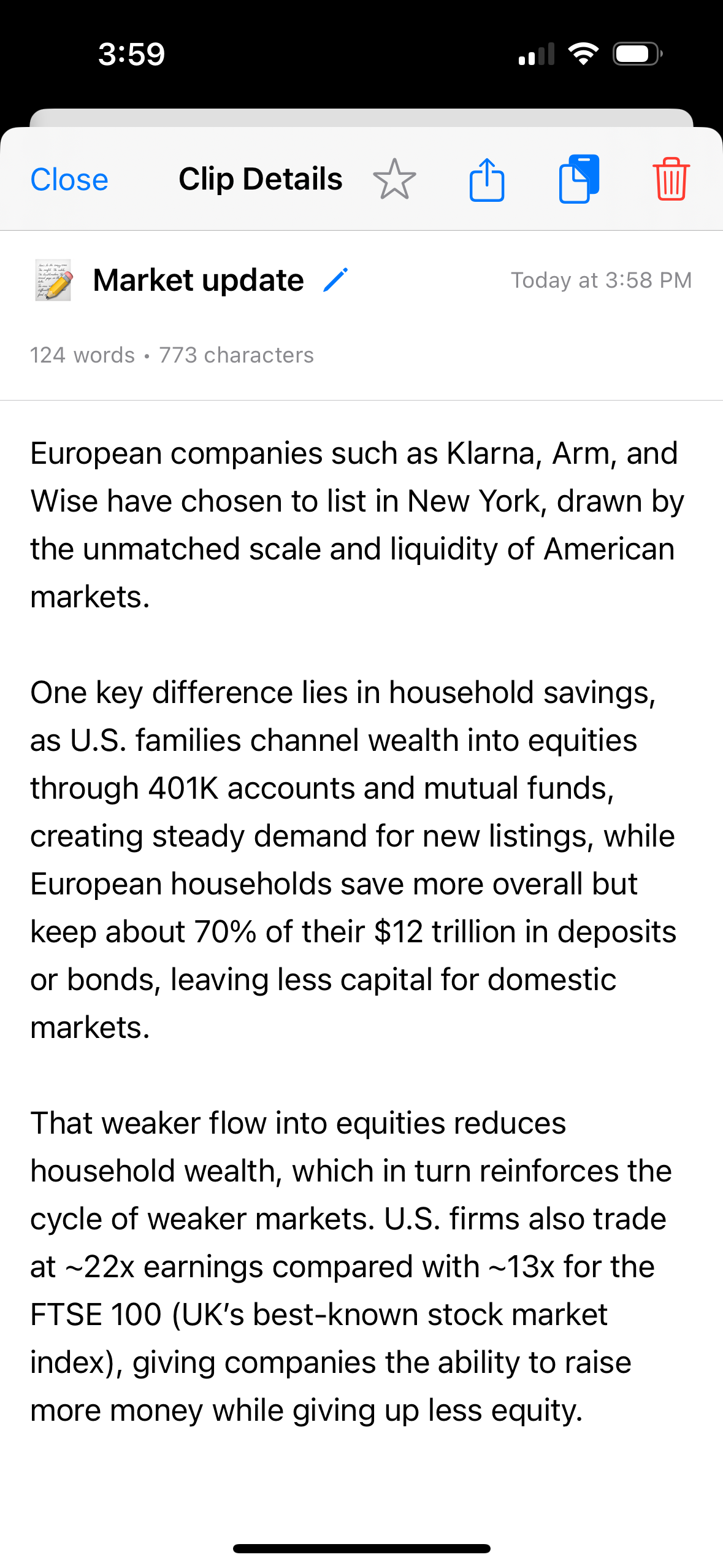
Image Clips
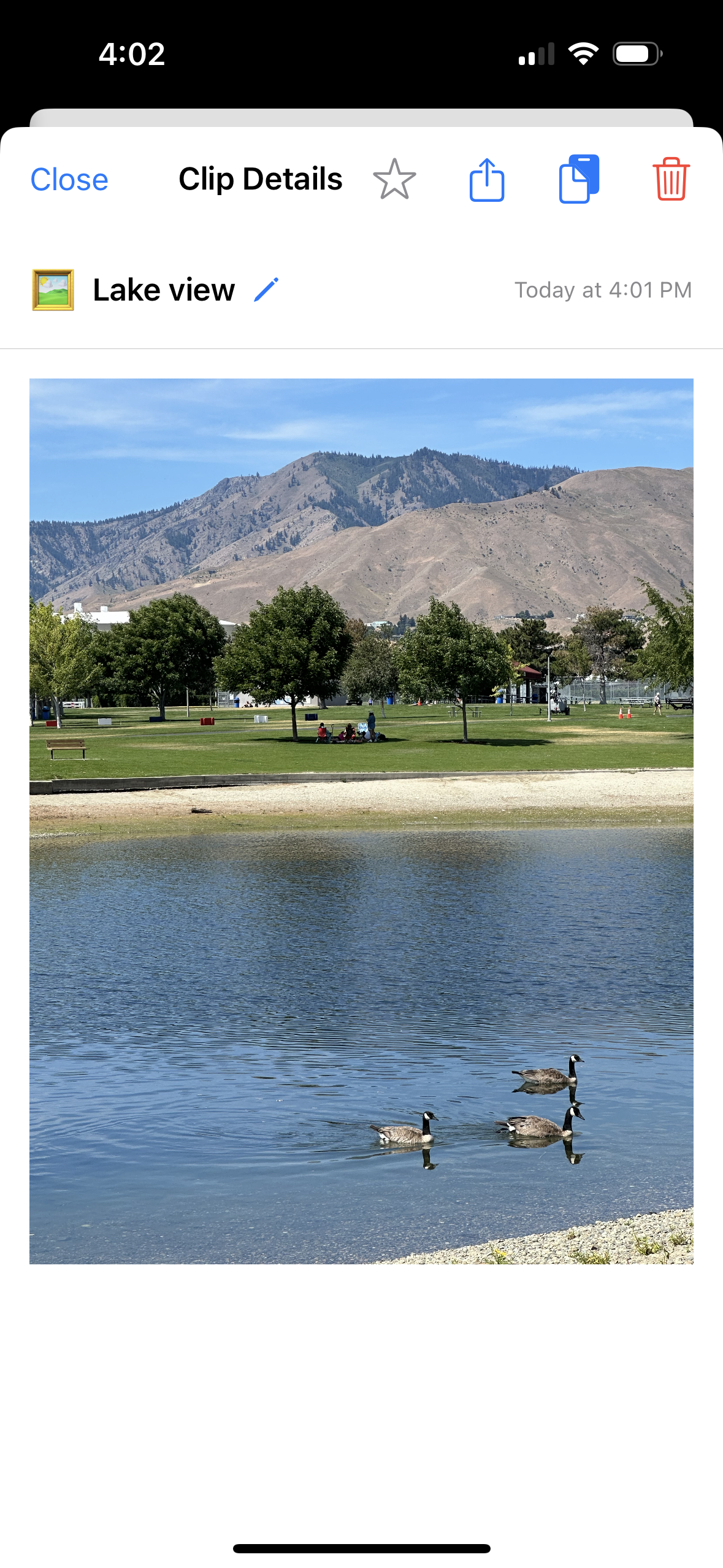
ClipStash fully supports image clipboard content:
- Thumbnail Preview: See image previews in the list
- Full Resolution: View full-size images in detail view
- Share Integration: Easily share images to other apps
🎯 Organizing & Managing Clips
Search Functionality
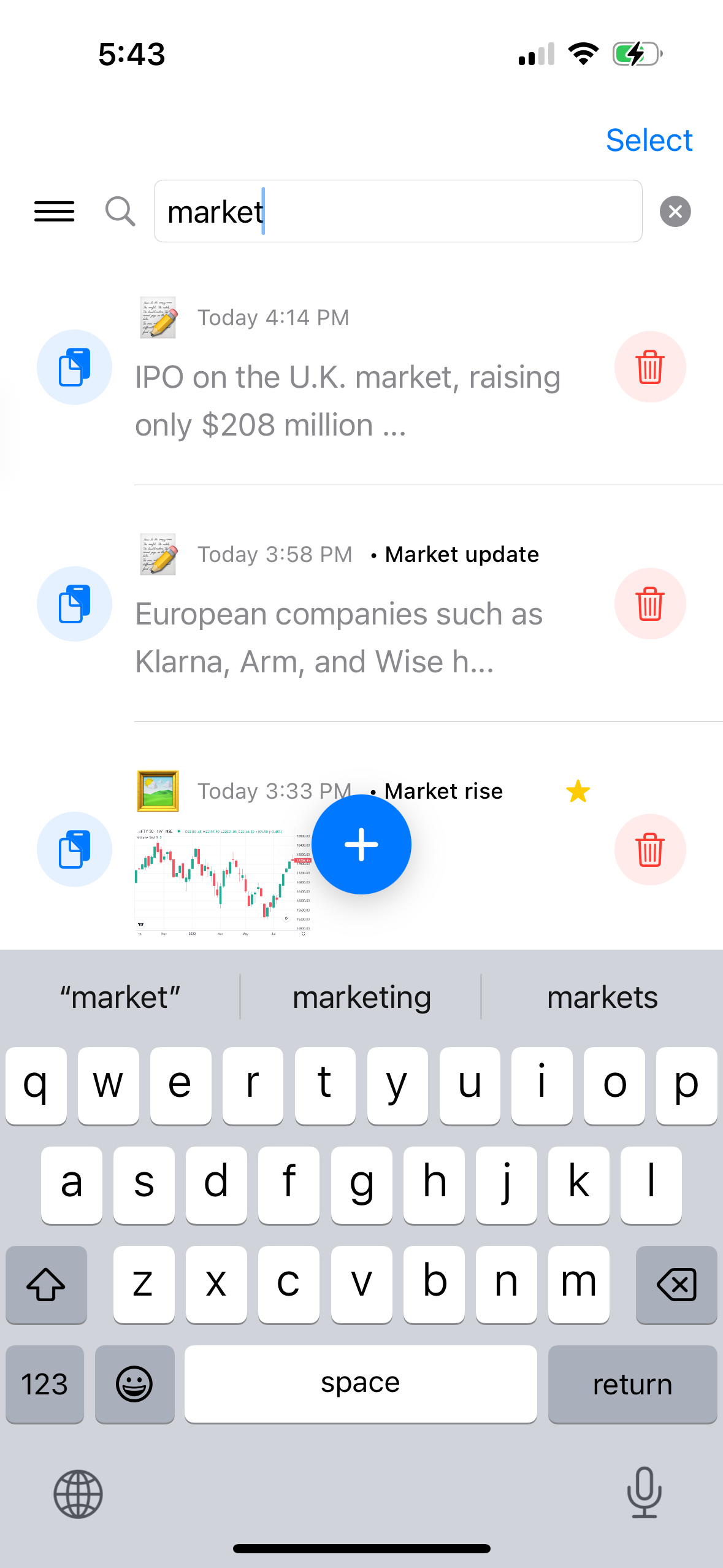
Powerful search helps you find clips instantly:
- Title Search: Search through custom titles you've added
- Content Search: Find text within the actual clip content
- Real-time Results: See results as you type
- Case Insensitive: Search works regardless of capitalization
Filtering Options
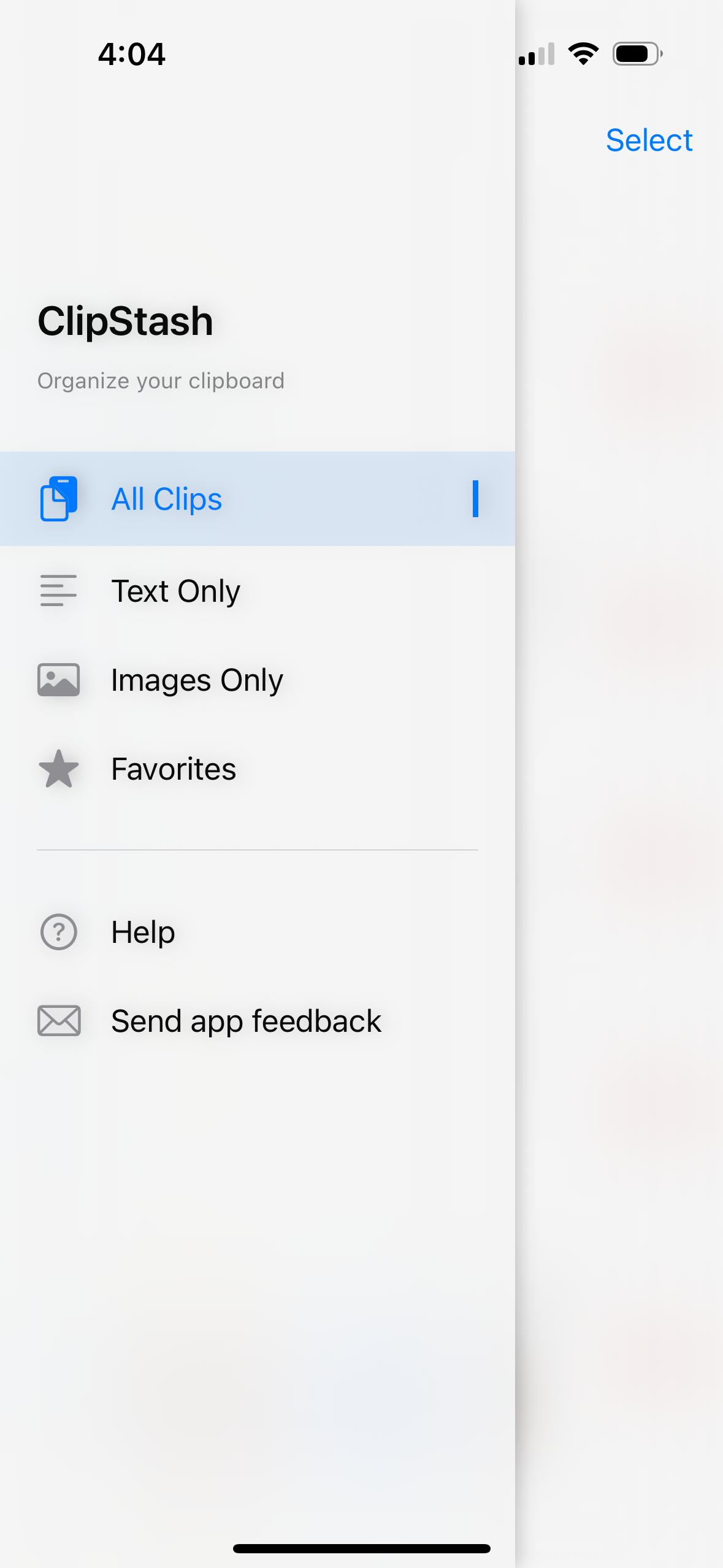
Access the filter menu by tapping the hamburger icon (☰):
- All Clips: View your complete collection
- Text Only: Show just text-based clips
- Images Only: Display only image clips
- Favorites: See clips you've marked with stars
Favorites System
Mark important clips as favorites:
- Star Icon: Tap the star to mark/unmark favorites
- Visual Indicator: Gold stars show in the list view
- Quick Filter: Access all favorites through the filter menu
- Priority Access: Keep important clips easily accessible
⚡ Advanced Features
Clip Detail View
Tap any clip to access the full detail view with powerful actions:
✏️ Title Editing
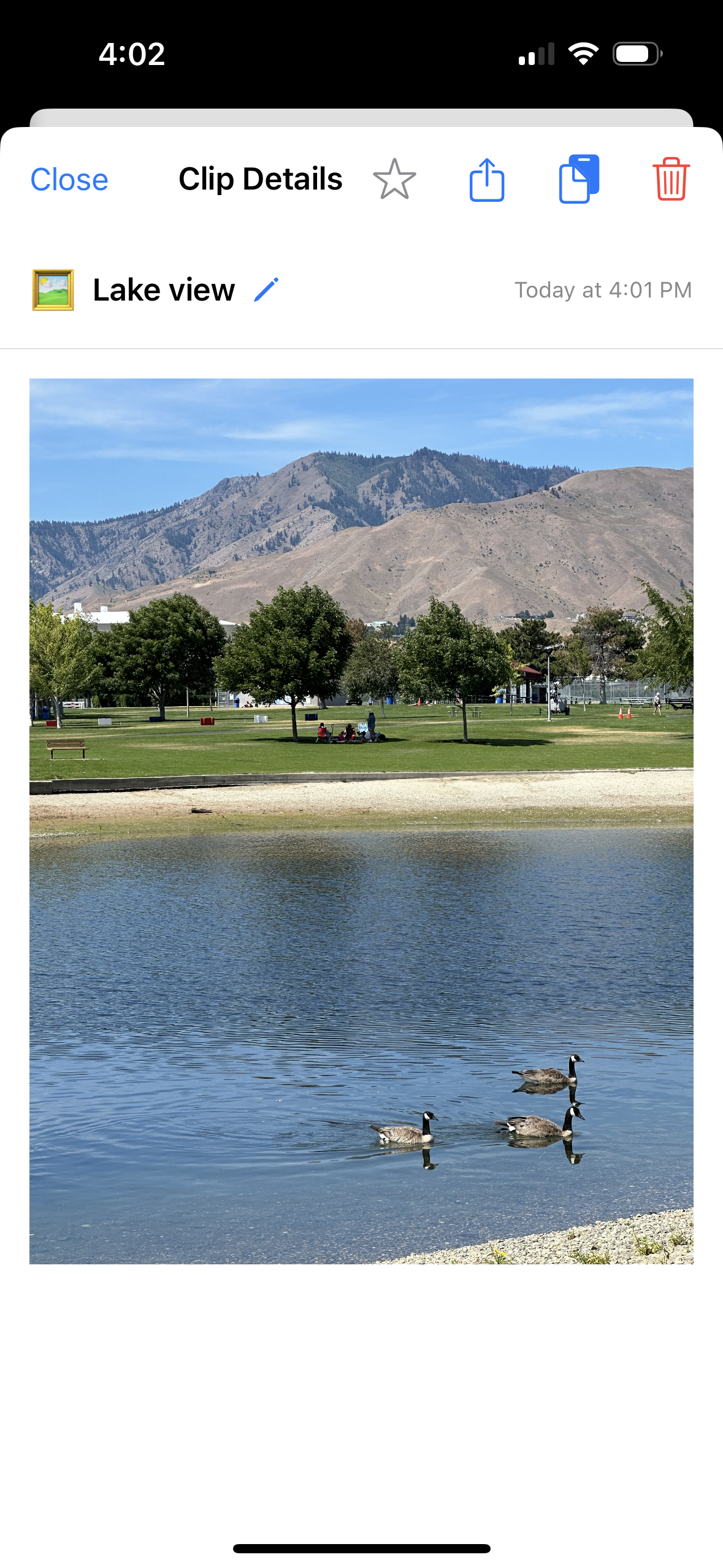
Add custom titles to clips for better organization. Tap the pencil icon to edit.
📤 Share Integration
Share clips to other apps using iOS's native share sheet. Works with text and images.
📋 Copy to Clipboard
Copy any clip back to your clipboard with a single tap.
⭐ Favorite Toggle
Mark clips as favorites for quick access later.
Note: ClipStash preserves your original clip content exactly as copied. While you can add custom titles for better organization, the actual clip content (text or images) cannot be modified after saving.
Selection Mode
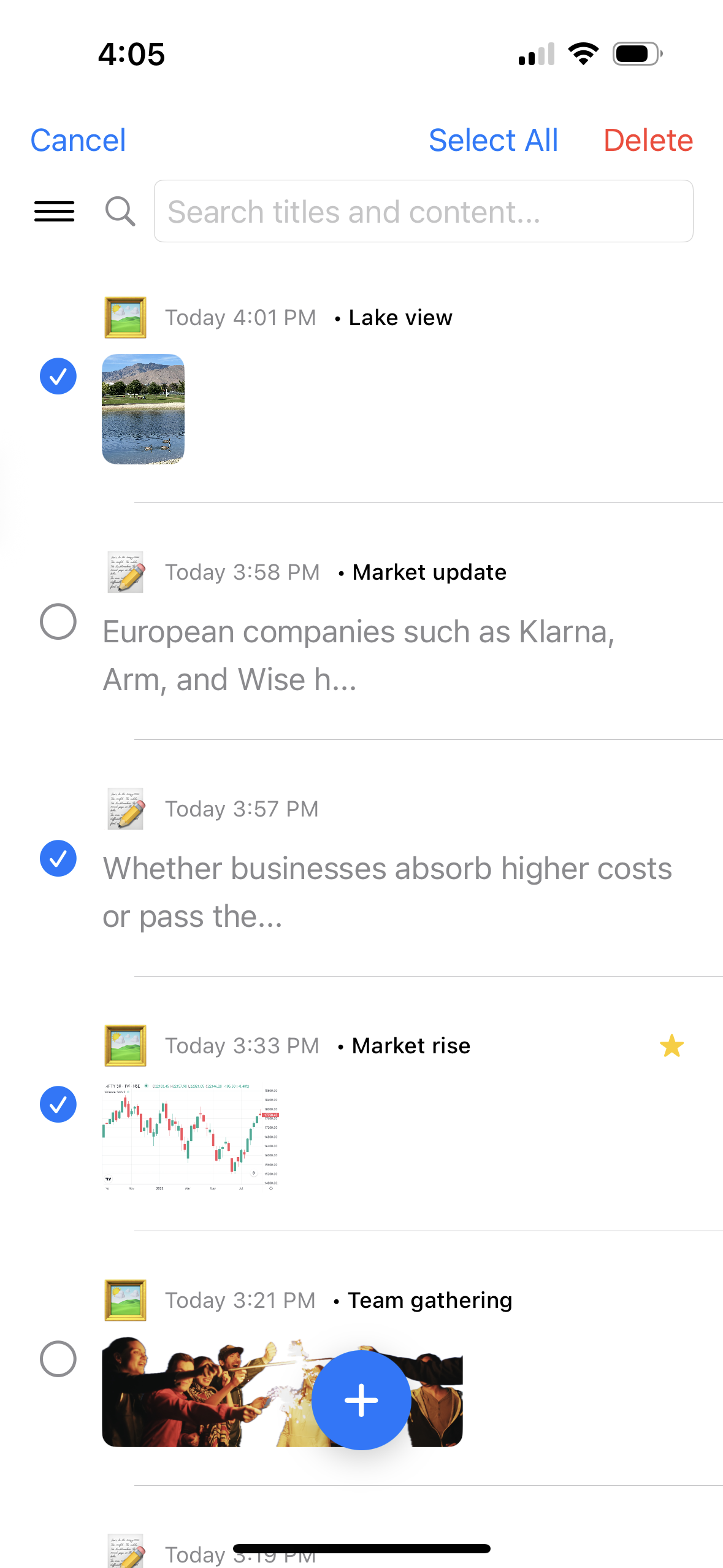
Efficiently manage multiple clips at once:
- Enter Selection: Tap "Select" in the top-right corner
- Choose Clips: Tap clips to select/deselect them
- Select All: Toggle all clips with one tap
- Bulk Delete: Remove multiple clips simultaneously
Dark Mode Support
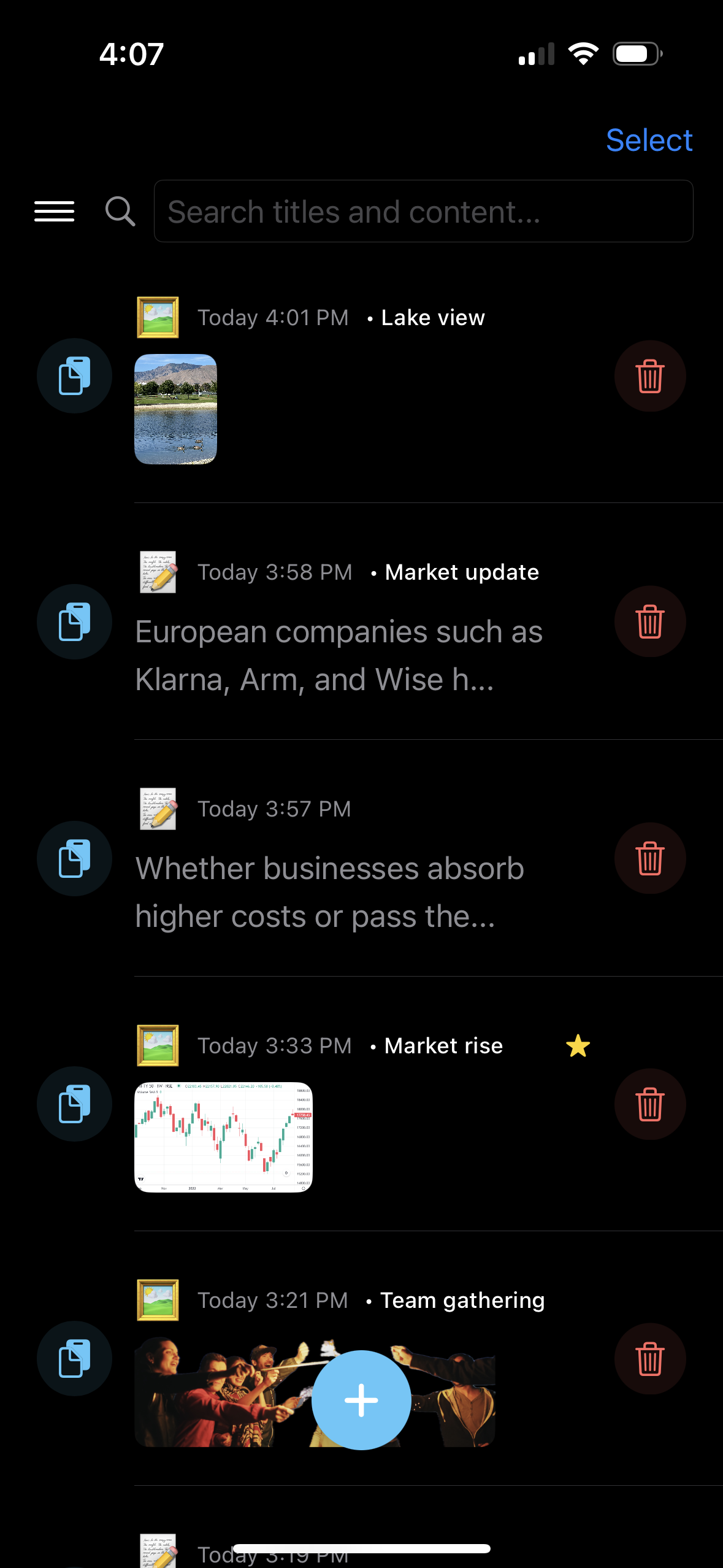
ClipStash features beautiful dark mode integration:
- System Integration: Automatically follows iOS dark mode settings
- Adaptive Colors: All interface elements adjust appropriately
- Enhanced Materials: Uses iOS blur effects and materials
- Consistent Experience: Maintains usability in all lighting conditions
🔧 Settings & Support
Navigation Menu
Access the slide-out menu by tapping the hamburger icon (☰):
- Filter Options: All Clips, Text Only, Images Only, Favorites
- Help: Access comprehensive help documentation and user guide
- Send Feedback: Email us directly with questions or suggestions
📧 Contact Information
Feedback Email: clipboardstash@gmail.com
Help Resources: ClipStash Help Guide
We'd love to hear from you! Send us your questions, suggestions, or just let us know how you're using ClipStash.
Technical Requirements
💡 Tips & Best Practices
📋 Clipboard Management Tips
- Regular Cleanup: Use selection mode to remove old clips you no longer need
- Use Favorites: Star frequently-used clips for quick access
- Add Titles: Give clips descriptive titles to make searching easier
- Filter Views: Use type filters to focus on specific content types
🔍 Search Efficiency
- Partial Matches: Search works with partial words and phrases
- Title Strategy: Add keywords to titles for better searchability
- Content Search: Remember that search looks inside text clips
- Clear Search: Tap the X to clear search and see all clips
Troubleshooting
❓ "Nothing to add" message
This appears when your clipboard is empty. Please copy some text or an image, then tap the + button to save it to ClipStash.
❓ Duplicate clips not being prevented
ClipStash uses content-based hash detection. Very similar but not identical content may still be added as separate clips.
❓ Search not finding clips
Search only works with text content and titles. Images clips are not searchable by their visual content.
❓ Share not working
Ensure the receiving app supports the content type you're sharing. Some apps only accept specific formats.
🔒 Privacy & Security
ClipStash stores all data locally on your device. Nothing is sent to external servers or cloud services. Your clipboard content remains private and secure.